The problem most professionals have isn’t a shortage of tools. It’s the opposite. There’s a note-taking app for every mood, a task manager launched every quarter, and a browser groaning under twenty extensions you installed once and forgot. Productivity software has become something you collect rather than use, and the collecting quietly costs you: every extra app is another login, another subscription, another place your work can hide.
A good tech stack is small and deliberate. The goal of this guide isn’t to hand you a longer shopping list, it’s to help you build a lean one: roughly one tool per job, each chosen because it earns its place, not because it trended. We’ll go job by job, name the credible options, and finish with a way to decide what belongs in your own setup and what to cut.
The rule: one tool per job, and it has to earn it
Before any app goes in, it should clear a low bar that surprisingly few do. It saves more time than it costs to maintain. It doesn’t duplicate something you already run. And it fails gracefully, meaning your data isn’t trapped if the company folds or doubles its price. Keep that test in mind as you read, because the temptation with every category below is to run two or three tools that overlap. Resist it. The friction of switching between redundant apps usually wipes out whatever marginal feature made you install the second one.
Capture and notes: match the tool to how you think
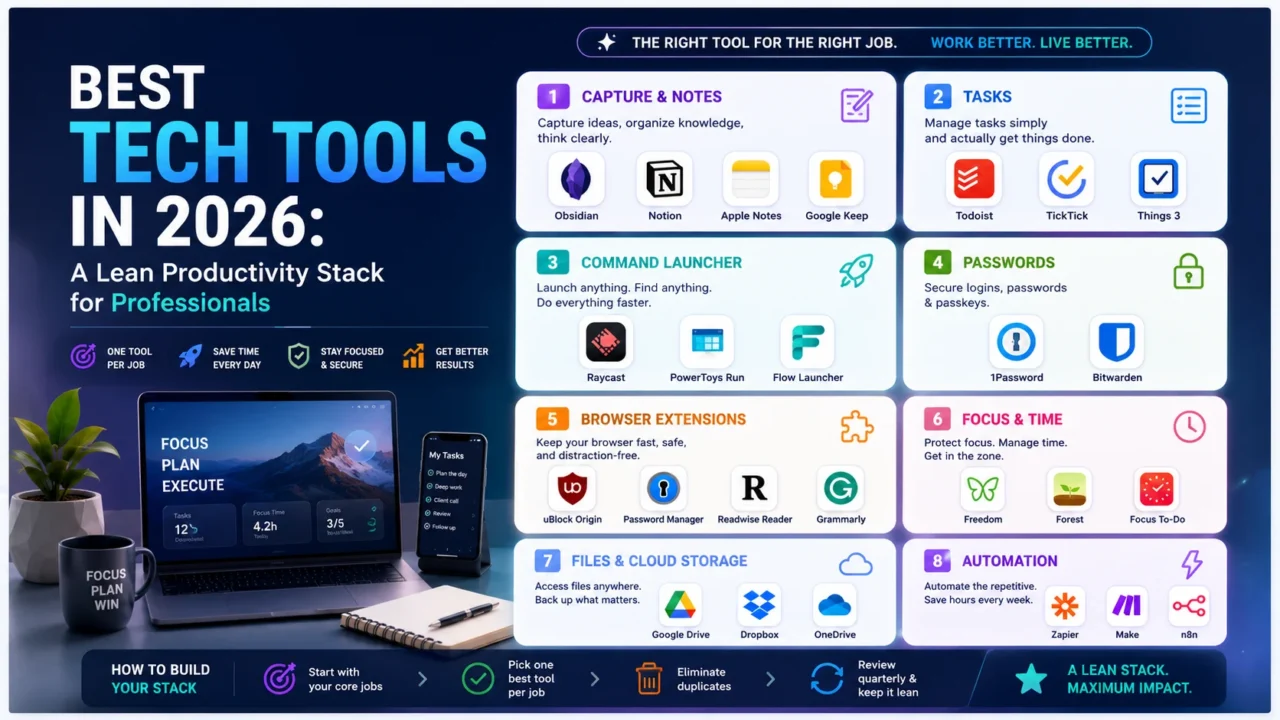
This is the most personal choice in the stack, so resist defaulting to whatever’s popular. If you think in linked ideas and want your notes to outlive any one app, Obsidian stores everything as plain Markdown files on your own machine, which means no lock-in and no monthly fee for core use. If you think in structured pages, databases, and shared docs, Notion is the more natural home, especially for teams that want a wiki and a project tracker in one place. And if you mostly need to jot things down without ceremony, the Apple Notes or Google Keep already on your phone is a perfectly respectable answer, the one most over-engineered stacks forget exists.
Tasks: a list you’ll actually open
A task manager only works if checking it is effortless. Todoist is the safe, cross-platform pick, with natural-language entry (“submit report Friday 3pm”) that makes capturing a task faster than writing it on paper. TickTick bundles a calendar, habit tracker, and Pomodoro timer for people who want one app to do more. On Apple devices, Things 3 remains the connoisseur’s choice for its clarity and design, though it’s a one-time purchase per platform rather than a subscription. Pick one, put it everywhere you work, and don’t keep a second list “just for personal stuff”, that split is where tasks go to die.
A command launcher: the upgrade most people miss
If you take one recommendation from this list, make it this one. A keyboard launcher lets you open apps, search files, do quick math, manage your clipboard, and trigger workflows without touching the mouse. On Mac, Raycast has largely replaced Spotlight for power users and folds in clipboard history, window management, and extensions, much of it free. On Windows, PowerToys Run (part of Microsoft’s free PowerToys suite) and the open-source Flow Launcher cover the same ground. The time saved is small per action and enormous per week.
Passwords: the one tool you cannot skip
This isn’t a productivity nicety, it’s basic security hygiene, and reusing passwords across sites is the single most common way ordinary people get breached. 1Password is the polished, family-and-team-friendly option with excellent apps and browser integration. Bitwarden is the open-source alternative with a genuinely usable free tier and the option to self-host if you want full control. Either one generates unique passwords, fills them automatically, and stores passkeys, which is where logins are heading anyway. Whichever you choose, turn on two-factor authentication while you’re at it.
Browser extensions worth keeping (and the discipline to stop there)
Your browser is where most work now happens, and every extension you add can see your browsing, so a short, trusted list beats a long one. Four cover the essentials for most people. uBlock Origin for content blocking, which also speeds up page loads and reduces tracking. Your password manager’s extension, so logins fill themselves. A read-it-later tool like Readwise Reader or Pocket to stop “I’ll read this later” from meaning eleven open tabs. And a writing assistant such as Grammarly if you write a lot in the browser. Audit the rest quarterly, anything you haven’t knowingly used in a month is a security liability, not a convenience.
Focus and window management: shape your screen
On a large monitor, dragging windows into place by hand is a small daily tax. Rectangle (free, Mac) snaps windows to halves, quarters, and thirds with keyboard shortcuts; PowerToys FancyZones does the same on Windows with custom grid layouts. Pair that with a focus tool, whether it’s your phone’s built-in Focus mode or an app like Freedom that blocks distracting sites during deep-work blocks, and you remove two of the most reliable interruptions to concentration without buying anything elaborate.
A productivity stack, compared
| Job | Recommended pick | Platforms | Pricing | Why it earns a spot |
|---|---|---|---|---|
| Notes (linked thinking) | Obsidian | Mac, Windows, Linux, mobile | Free / Paid sync | Plain-Markdown files you own outright, no lock-in |
| Notes (structured) | Notion | Web, desktop, mobile | Freemium | Docs, databases, and wikis in one workspace |
| Tasks | Todoist | Everywhere | Freemium | Natural-language entry, reliable cross-platform sync |
| Tasks (Apple) | Things 3 | Mac, iPhone, iPad | Paid (one-time) | Best-in-class clarity, no subscription |
| Command launcher (Mac) | Raycast | Mac | Freemium | Launch, search, clipboard, and window control in one |
| Command launcher (Windows) | PowerToys Run | Windows | Free | Microsoft-built, fast keyboard-first launcher |
| Passwords | 1Password | Everywhere | Paid | Polished apps, strong team and family sharing |
| Passwords (open-source) | Bitwarden | Everywhere | Freemium | Free tier that’s actually usable, self-host option |
| Content blocking | uBlock Origin | Browser extension | Free | Faster pages, less tracking, lightweight |
| Read-it-later | Readwise Reader | Web, mobile, extension | Paid | Saves articles and surfaces highlights later |
| Writing assistant | Grammarly | Everywhere | Freemium | Real-time clarity and tone fixes in any app |
| Window management | Rectangle / FancyZones | Mac / Windows | Free | Keyboard-driven window snapping |
How to assemble your own stack
Start from the work, not the apps. List the handful of things you do every day, capturing ideas, tracking tasks, writing, logging in, and fill one slot at a time. Choose by platform first (a Mac-only gem is useless if you live on Windows), then by whether you’ll genuinely use the extra features you’re paying for. Most professionals are well served by a free or freemium tier in every category except passwords, where paying for a good manager is money well spent.
Then audit twice a year. Open your installed apps and browser extensions and ask the same question of each: have I used this on purpose in the last month? If not, remove it. The cost of a tool isn’t only its price, it’s the attention it demands, the data it can see, and the decision fatigue of having one more thing to check. A stack you’ve pruned is faster and safer than one you’ve merely accumulated.
What to avoid
Three traps catch almost everyone. The first is tool-hopping, switching note apps every few months in search of a system that fixes a discipline problem no app can solve. The second is subscription creep, the small monthly charges you forgot about that quietly outnumber the tools you actually open; review your recurring payments and cancel the dormant ones. The third is over-customizing, spending more time configuring a tool than the tool will ever save you. The best stack is the one you stop thinking about because it simply works.
Build small, choose deliberately, and prune often. For more reviews and comparisons across apps, extensions, and AI-powered software, browse the AITechSpark AI Tools Directory.