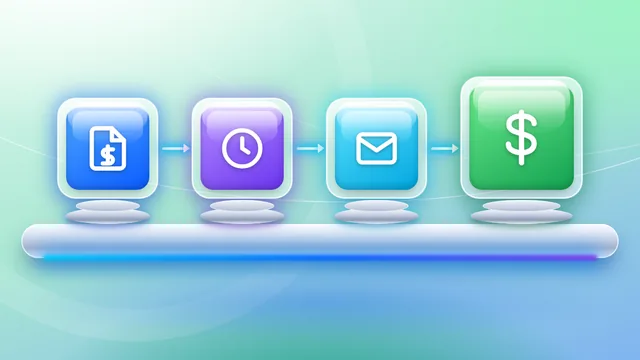
Proposed workflow. Each software feature it relies on was checked against the vendor’s own documentation on November 23, 2026. We have not run this exact setup end to end, so test it with sample data before you rely on it.
How it works
- 1. TriggerInvoice email arrivesGmail Trigger on the bills label
- 2. ActionRead the PDFExtract From PDF; scans go to manual entry
- 3. AI stepExtract invoice fieldsSupplier, number, dates, totals
- 4. FilterCheck totals and duplicatesFlags, not silent fixes
- 5. You checkApprove or declineSlack buttons; flags shown first
- 6. ActionUpdate registerOptional draft bill in Xero
Software you need
-
n8n Required
Runs the whole workflow: picks up emails, reads PDFs, calls the AI model, checks the numbers and waits for approval.
-
Gmail (official site, opens in a new tab) Required
The mailbox where supplier invoices arrive, sorted by a label.
-
AI chat model (OpenAI or Anthropic) (official site, opens in a new tab) Required
Connected to n8n’s Information Extractor to pull the invoice fields out of the text.
-
Google Sheets (official site, opens in a new tab) Required
The Bills register: one row per invoice, used for the duplicate check and the audit trail.
-
Slack (official site, opens in a new tab) Required
Where approvers see each bill and press Approve or Decline.
-
Xero (official site, opens in a new tab) Optional
Optional: receives approved invoices as draft bills for your bookkeeper.
Estimated cost
The main cost is n8n (Cloud Starter, or a server if you self-host) plus AI usage, which is small per invoice but worth capping. Gmail, Google Sheets and Slack accounts you already have are enough. Xero is optional.
Estimate this workflow’s monthly cost
| Software | Free plan | Paid plans from | What this workflow needs |
|---|---|---|---|
| n8n | A standard self-hosted version is available on GitHub (you run and pay for the server yourself) | Cloud Starter €20 a month for 2,500 workflow executions, Pro €50 a month for 10,000, both billed annually Pricing page for n8n (opens in a new tab) | Starter is enough for most small businesses; each invoice email is one execution |
| AI chat model | Depends on the provider | Billed by usage on the provider’s API pricing page Pricing page for AI chat model (opens in a new tab) | An API key with a spending limit set |
| Xero (optional) | Not checked | Prices vary by country; see Xero’s pricing page for your region Pricing page for Xero (optional) (opens in a new tab) | Only if you send approved bills to Xero |
Prices and plan limits from each vendor’s official pricing page, checked Nov 23, 2026. Vendors change prices; check the page before you buy.
What this automation does
Suppliers email you PDF invoices. Instead of someone opening each one and typing it into a spreadsheet or accounts package, this workflow reads the PDF, pulls out the supplier, invoice number, dates and amounts, checks that the numbers add up and that you have not seen the invoice before, logs it, and asks the right person to approve it in Slack with one tap. Nothing is paid and nothing reaches your accounts until a person approves it.
It is built with n8n, Gmail, an AI chat model, Google Sheets and Slack, with Xero as an optional last step. It is the most demanding workflow in our library, and it saves time on every invoice.
Who benefits
- Owners who do their own books and lose an evening a month to keying in supplier invoices.
- Office and finance managers who chase approvals by email and lose track of what is waiting.
- Bookkeepers and accountants who receive a clean, checked register instead of a pile of PDFs.
- Businesses with many suppliers, such as cafés, restaurants, builders, online shops and agencies.
- Suppliers, who get paid on time because their invoice did not sit unread in an inbox.
Advantages
- No more typing. The fields are read from the PDF; a person only checks them.
- Stops double payments. Every invoice is checked against the register for the same supplier and invoice number.
- Catches mistakes. Totals that do not add up, missing fields and large amounts are flagged before approval.
- One-tap approvals. Approvers press Approve or Decline inside Slack, without logging in anywhere.
- A complete audit trail. Every invoice received is in the register with its status and who approved it.
- Priced per run, not per step. n8n prices by workflow execution, so a long workflow does not cost more per invoice.
What it does not do: it does not pay suppliers, read scanned paper invoices without extra tools, or replace your bookkeeper’s coding of bills. It drafts and records; people approve and pay.
The process flow
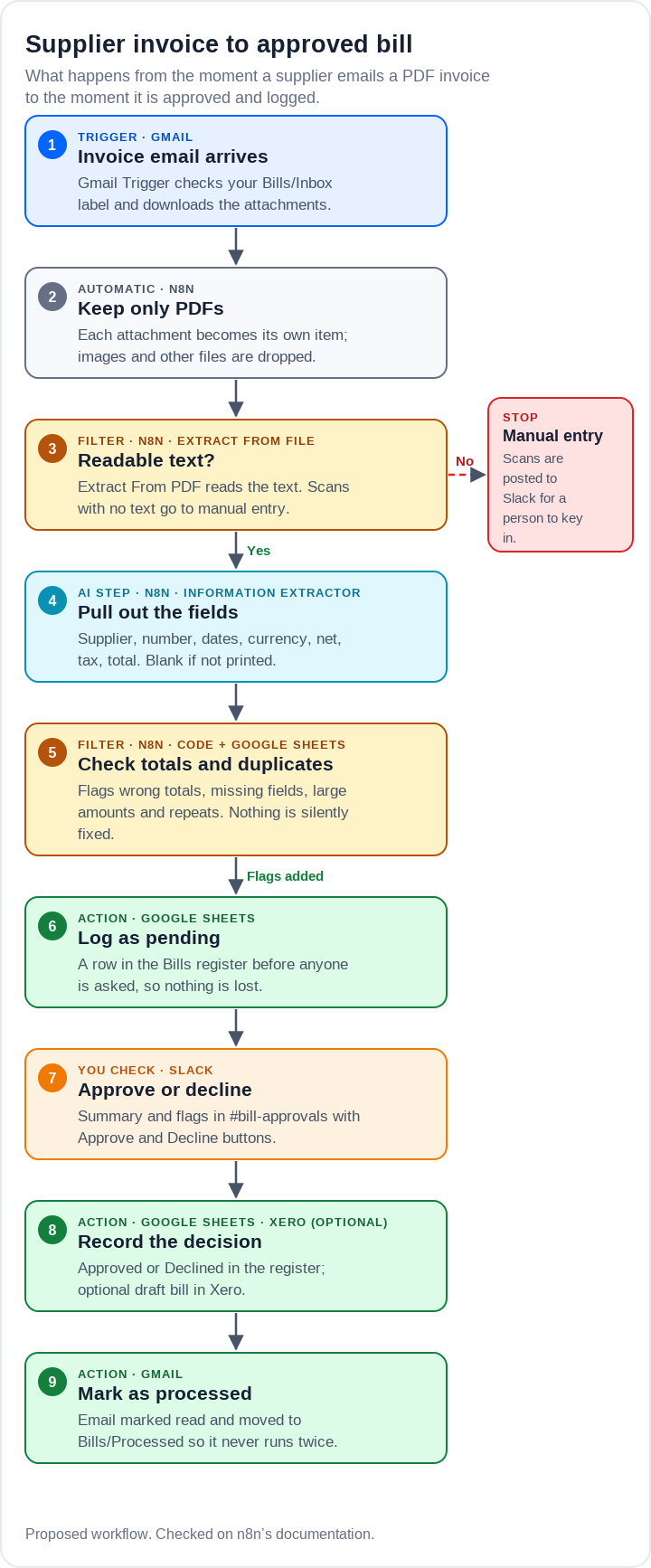
Before you start
- An n8n account, either n8n Cloud or a self-hosted instance. It must be reachable from Slack over public HTTPS for the approval step, so an instance running only on your own laptop will not work.
- A dedicated mailbox or Gmail label for supplier invoices, for example bills@yourcompany or a Gmail filter that labels mail as Bills/Inbox.
- An API key for an AI chat model that n8n supports, such as OpenAI or Anthropic. Set a monthly spending limit with the provider before you start.
- A Slack workspace where you can create an app, and a private channel such as #bill-approvals with the people who approve spending.
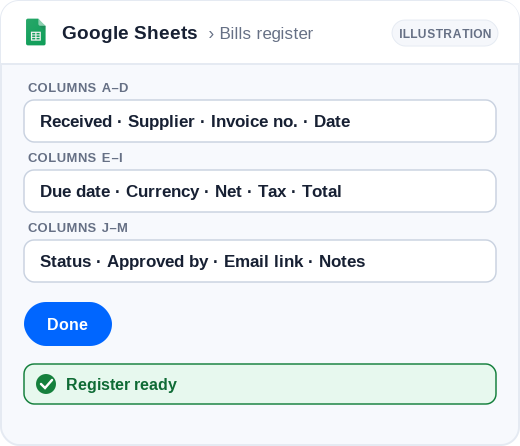
- A Google Sheet called Bills register with these column headers: Received, Supplier, Invoice number, Invoice date, Due date, Currency, Net, Tax, Total, Status, Approved by, Email link, Notes.
- Five to ten real supplier invoices as PDFs, including at least one that is a scan, one with several pages and one you have already paid, to use as test data.
- Optional: a Xero organisation, ideally the Xero demo company first, if you want approved bills sent to your accounts.
Every branch, step by step
This is the full path one invoice takes, including the checks and branches.
- Email arrives. The Gmail Trigger checks the bills label on a schedule and picks up new, unread messages with their attachments.
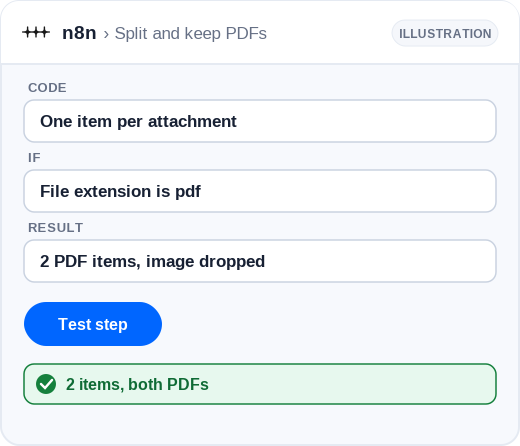
- Split and keep only PDFs. Each attachment becomes its own item. Anything that is not a PDF, such as a logo image in the signature, is dropped.
- Read the text. Extract From File pulls the text out of each PDF.
- Branch: no readable text. If the text is empty or very short, the PDF is probably a scan. It goes straight to Slack as “needs manual entry” and stops here.
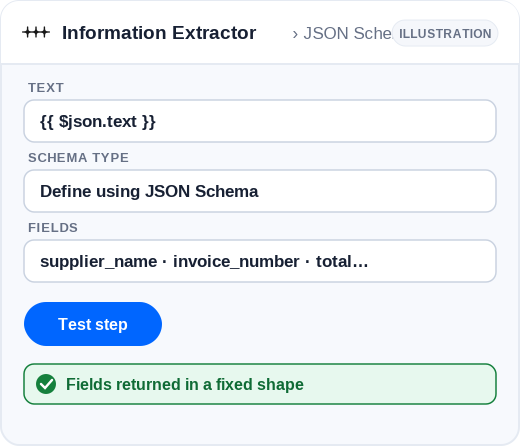
- AI extracts the fields. The Information Extractor returns supplier, invoice number, dates, currency, net, tax and total in a fixed structure, and leaves a field blank rather than guessing.
- Validate. A Code step checks that net plus tax equals total (within one cent), that dates are real dates, and that the required fields are present. Problems are written to a “flags” list rather than stopping the run.
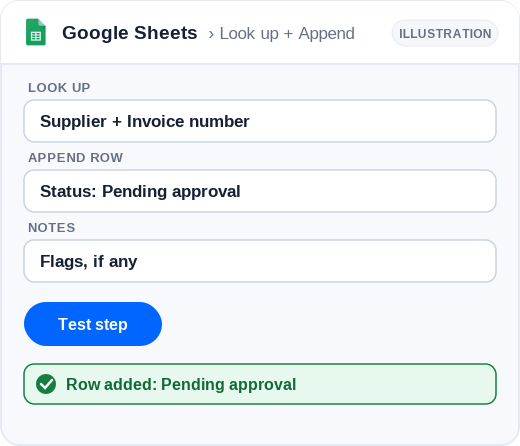
- Duplicate check. The workflow looks up the supplier and invoice number in the Bills register. A match is flagged as a possible duplicate.
- Log as pending. A new row is added to the register with status Pending approval, so nothing is lost even if nobody answers in Slack.
- You check. Slack posts a summary to #bill-approvals with any flags and a link to the original email, then waits for Approve or Decline.
- Branch: approved. The register row is updated to Approved with the approver’s name. Optionally, a draft bill is created in Xero for your bookkeeper to confirm.
- Branch: declined or no answer. The row is updated to Declined or Timed out, and the email is left in the label for a person to deal with.
- Mark as processed. The email is marked as read and moved to a Bills/Processed label, so it is never picked up twice.
Step-by-step setup
13 steps, about 4–6 hours in total. Each step shows where to go, what to click, the exact settings and how to check it worked. The pictures are simplified illustrations of the settings, not screenshots, and button names can change slightly as apps update.
-
Gmail · Filters and labels
Route invoices to one place
10 min

Do this
- Ask suppliers to send invoices to one address, or create a Gmail filter for mail from known suppliers with attachments.
- Have the filter apply the label Bills/Inbox.
- Create a second label, Bills/Processed.
Setting Set it to Filter: from Your suppliers’ domains Filter: has attachment Yes Apply label Bills/Inbox Second label Bills/Processed Check: Forward an old invoice to yourself and confirm it gets the Bills/Inbox label.
-
Google Sheets · New spreadsheet
Build the Bills register
10 min
Do this
- Create a spreadsheet called Bills register.
- Type the 13 headers below into row 1 and freeze the row.
- Format the Invoice number column as plain text so leading zeros stay.
Setting Set it to Columns Received, Supplier, Invoice number, Invoice date, Due date, Currency, Net, Tax, Total, Status, Approved by, Email link, Notes Invoice number Plain text Row 1 Frozen Check: Every header is spelled exactly as above. The workflow maps to these names.
-
n8n · Credentials · Slack app
Connect your accounts in n8n
30 min

Do this
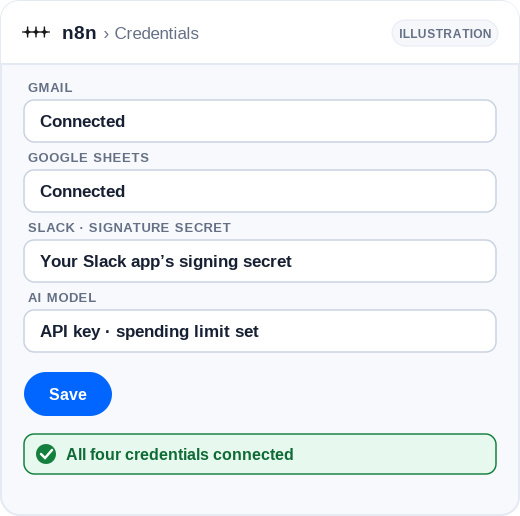
- In n8n, add credentials for Gmail, Google Sheets, Slack and your AI model provider.
- For Slack, create a Slack app and put its signing secret in the credential’s Signature Secret field.
- In the Slack app’s Interactivity settings, set the Request URL to
https://<your-n8n-instance>/webhook-waiting-slack. - Set a monthly spending limit with your AI provider.
Setting Set it to Slack Request URL https://<your-n8n-instance>/webhook-waiting-slackSlack credential Signature Secret = signing secret Instance Reachable over public HTTPS (not localhost) Check: Each credential tests successfully. Without the Request URL and signing secret, Slack buttons will not reach n8n.
-
n8n · New workflow
Add the Gmail Trigger
10 min
Do this
- Start a new workflow with the Gmail Trigger.
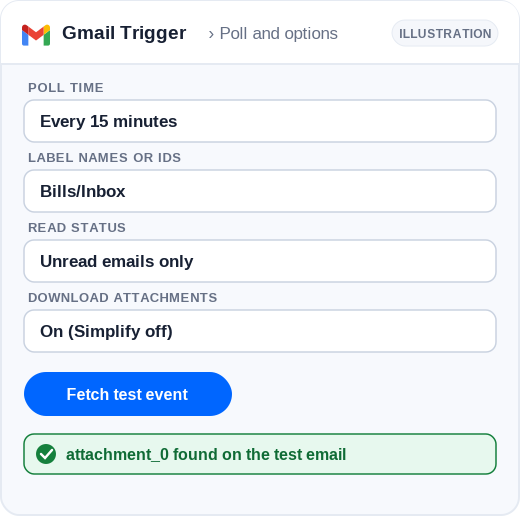
- Set the poll time (every 15 minutes is plenty) and filter on the Bills/Inbox label.
- Keep Read Status on unread emails only.
- Turn Simplify off, then under Options switch on Download Attachments.
- Fetch a test event using one of your sample invoice emails.
Setting Set it to Poll time Every 15 minutes Label Bills/Inbox Read Status Unread emails only Simplify Off Download Attachments On Check: The binary tab shows attachment_0 (and attachment_1 and so on for more files).
-
n8n · Code + If
Split attachments and keep only PDFs
15 min
Do this
- Add a short Code step that turns each attachment into its own item.
- Add an If (or Filter) step that keeps items whose file type is PDF.
- Test with an email that has two PDFs and an image.
Setting Set it to Split One item per attachment Keep File type = PDF Drop Images, signatures, other files Check: An email with two invoices gives two items, so it will produce two separate approvals.
-
n8n · Extract From File + If
Extract the text
10 min
Do this
- Add Extract From File with the operation Extract From PDF.
- Point it at the attachment’s binary property.
- Add an If step: when
$json.textis shorter than about 50 characters, go to a “manual entry” path. - On that path, post the email link to Slack and stop.
Setting Set it to Operation Extract From PDF Input binary field The attachment If Text shorter than 50 characters → manual entry Check: A text PDF gives readable text; a scanned PDF goes to manual entry.
-
n8n · Information Extractor
Pull out the invoice fields with AI
20 min
Do this
- Add the Information Extractor node and connect your chat model to it.
- Set the text to
{{ $json.text }}. - Choose Define using JSON Schema and list the fields below.
- Paste the instruction below into the system message.
Setting Set it to Text {{ $json.text }}Schema type Define using JSON Schema Fields supplier_name, supplier_email, invoice_number, invoice_date, due_date, currency, net_amount, tax_amount, total_amount, line_summary Dates YYYY-MM-DD Amounts Numbers only Use only what is printed on the invoice. If a value is not shown, return null. Never calculate or guess a value.
Check: Compare every field with the PDF for three different suppliers.
-
n8n · Code
Validate the numbers
20 min
Do this
- Add a Code step that builds a flags list for each invoice.
- Add a flag for each of the four checks below.
- Do not stop the workflow on a flag. Flags are shown to the approver.
Setting Set it to Check 1 Net + tax differs from total by more than 0.01 Check 2 Supplier, invoice number or total missing Check 3 Due date before invoice date Check 4 Total above your second-approver amount Check: An invoice where you edited the total shows a mismatch flag.
-
n8n · Google Sheets
Check for duplicates and log as pending
15 min
Do this
- Add a Google Sheets step that looks up rows where Supplier and Invoice number match.
- If a row exists, add “Possible duplicate of a bill already logged” to the flags.
- Add a second Google Sheets step that appends a row with status Pending approval, the fields, the flags in Notes and the Gmail link.
Setting Set it to Lookup Supplier + Invoice number If found Add duplicate flag Append Status = Pending approval Notes The flags Email link Link to the Gmail message Check: Sending the same invoice twice adds a duplicate flag to the second one.
-
n8n · Slack
Ask for approval in Slack
15 min
Do this
- Add a Slack node: Message › Send and Wait for Response.
- Set Response Type to Approval and the channel to #bill-approvals.
- Write the message from the template below, with flags first.
- If the node lets you limit how long it waits, set about three working days.
⚠ [flags, if any]
Bill from [supplier]: [currency] [total], invoice [number], due [due date]
[line summary]
Original email: [link]Check: Pressing a button in Slack moves the workflow on straight away, with no browser page opening.
-
n8n · If + Google Sheets + Gmail
Act on the decision
15 min
Do this
- Add an If step on the Slack response.
- Approved: update the register row to Approved, with the approver and time.
- Declined: update it to Declined. No answer: Timed out, and post a reminder.
- In every case, finish with Gmail steps that mark the email as read and move it to Bills/Processed.
Setting Set it to Approved Status = Approved, Approved by, time Declined Status = Declined No answer Status = Timed out + reminder Every path Mark read, label Bills/Processed Check: After you approve a test invoice, its row says Approved and the email is in Bills/Processed.
-
n8n · Xero (optional)
Optional: send approved bills to Xero
30 min
n8n’s Xero node can create, get, list and update invoices and contacts. We have not confirmed it can create a draft bill, so test this in Xero’s demo company before using it with real books.
Do this
- Connect the Xero demo company first.
- Add the Xero node on the Approved path and create an invoice from the fields.
- Confirm in Xero that the record is a bill (a purchase, not a sales invoice) and a draft.
- Match the supplier to an existing Xero contact rather than creating new ones automatically.
Setting Set it to First Xero demo company Check Bill, not sales invoice; Draft status Contacts Match existing suppliers Check: Only switch to your real organisation once the demo record is a draft bill that your bookkeeper is happy with.
-
n8n · Error Trigger + Activate
Add an error alert and switch it on
10 min, then 2 weeks
Do this
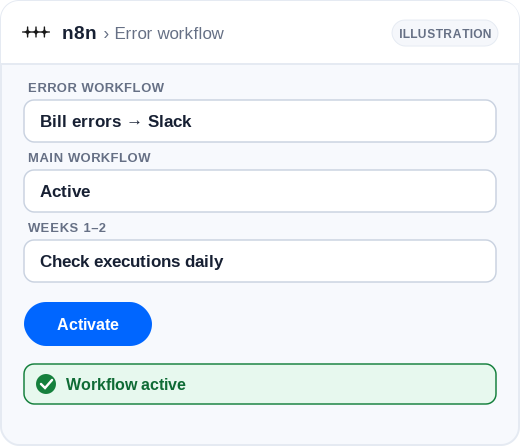
- Create a small second workflow that starts with the Error Trigger and posts to Slack.
- Set it as this workflow’s error workflow in the workflow settings.
- Activate the main workflow.
- Check its executions every day for the first two weeks.
Setting Set it to Error workflow Error Trigger → Slack Main workflow Active First 2 weeks Check executions daily Check: A deliberately broken test (for example, a wrong sheet name) produces a Slack alert.





Using it day to day
- When a Slack approval arrives: read the flags first, open the original email if anything looks odd, then press Approve or Decline.
- When a “manual entry” message arrives: key that scanned invoice into the register yourself, so the register stays complete.
- Every week (15 minutes): filter the register for Pending approval and Timed out rows and chase them. Check n8n’s executions for errors.
- Every month: hand the register to your bookkeeper, check AI spending against your limit, and look at which suppliers’ invoices are often flagged.
- When a supplier changes bank details: confirm by phone on a number you already hold before approving.
Small-business examples
These are illustrations of how different businesses could set it up, not customer case studies.
A busy café
Food, drink and cleaning suppliers send around a dozen invoices a week. The owner approves from Slack between services, the large-amount flag is set to a figure that needs the co-owner too, and the bookkeeper takes the register at month end instead of a folder of PDFs.
A small building firm
Merchants often resend the same invoice as a reminder. The duplicate check catches those, and the site manager approves materials invoices only for jobs they ran. Scanned delivery notes go to manual entry.
An online shop
Packaging, courier and stock invoices arrive in several currencies. The currency field and the totals check catch mistakes, and approved bills are sent to the Xero demo company first, then to the real books once the bookkeeper is happy.
Test it before you rely on it
- Send yourself one clean, single-page invoice. Check the register row, the Slack message and every extracted field against the PDF.
- Press Approve and confirm the row changes to Approved and the email moves to Bills/Processed.
- Send the same invoice again. Confirm it is flagged as a possible duplicate.
- Send an invoice where you have edited the total so it no longer adds up. Confirm the mismatch flag appears.
- Send a scanned invoice. Confirm it goes to the manual entry path and nothing is invented.
- Send one email with two PDF invoices and one image. Confirm you get two approvals and the image is ignored.
- Press Decline on one and check its status in the register. If you set a wait limit, leave one unanswered past it and check that too.
- If you use Xero, check the draft bill in the demo company: supplier, dates, amounts, currency and that it is a draft bill.
Troubleshooting
- The trigger never fires. Check the label name matches exactly, the emails are unread, and the workflow is active, not just saved.
- No attachments come through. Download Attachments only appears with Simplify turned off. Check the binary tab of the trigger’s output.
- Extracted text is empty. The PDF is a scan or an image. Route it to manual entry, or add an OCR service later and test it separately.
- Dates or amounts come back in the wrong format. Tighten the JSON schema, give one example in the instruction, and normalise in the Code step (for example, remove thousands separators before comparing totals).
- The AI fills in values that are not on the invoice. Repeat the “return null, never guess” rule and lower the model’s temperature. The validation and the human check are there to catch what remains.
- Slack buttons do nothing. The Request URL, signing secret or public HTTPS address is wrong. A localhost instance cannot receive Slack responses.
- The same invoice is processed twice. Make sure the last step marks the email as read and moves it out of the label, and that the duplicate lookup runs before the register row is added.
- You run out of executions. Each email that triggers the workflow uses an execution. Poll less often and keep the label filter tight so newsletters never start a run.
Security and privacy
- Invoices contain bank details, addresses and sometimes personal data. Keep the mailbox, the register and the Slack channel restricted to the people who need them.
- Invoice text is sent to the AI model provider. Check the provider’s data-use and retention terms, and whether your plan or contract excludes your data from training.
- Never let the workflow pay anyone. It records and drafts; a person approves, and your accounting process pays.
- Watch for invoice fraud. Treat a change of a supplier’s bank details as a red flag and confirm it by phone using a number you already hold, not one from the email.
- Store credentials only in n8n’s credential manager, not in Code steps or the sheet, and give the Slack app only the permissions it needs.
- Keep the original PDFs. Most tax authorities require you to keep invoices for several years; check the rules where your business is registered.
Frequently asked questions
Why n8n rather than Zapier or Make?
This workflow has branches, a validation step and a pause while it waits for a person, which n8n handles in one workflow. n8n prices by workflow execution rather than by step, so a long workflow does not cost more per invoice. Zapier or Make can do a similar job with their own approval and AI steps.
Can I use Outlook or QuickBooks instead?
n8n has nodes for both, but we checked only the Gmail, Slack and Xero nodes for this workflow. The process flow stays the same; check the trigger and create-bill options in the n8n docs for your tools.
Doesn’t my accounting software already read invoices?
Some accounting tools include their own bill capture. This workflow is for businesses that want one approval step in Slack, their own duplicate and total checks, and a single register of every invoice received, whatever happens to it.
How accurate is the AI extraction?
On clean, text-based PDFs it is usually close, but it can misread totals, swap dates or pick the wrong supplier name from a letterhead. That is why the workflow checks the numbers, flags duplicates and never posts anything without a person approving it.
Can I approve automatically below a certain amount?
You can add a branch that skips Slack for small totals from known suppliers with no flags. We suggest running with full approval for at least a month first, and reviewing the register before you switch anything to automatic.
What we verified
These are the software features this workflow depends on, each checked on the vendor’s own help or pricing page. Everything else on this page, including how the steps fit together, is our proposal.
-
n8n’s Gmail Trigger polls for new messages and can filter by label, Gmail search, sender and read status (unread only by default).
n8n docs: Gmail Trigger (opens in a new tab) · checked Nov 23, 2026 -
The Gmail Trigger has a “Download Attachments” option (with Simplify off) that writes attachments to binary properties prefixed attachment_.
n8n-nodes-base Gmail Trigger definition (opens in a new tab) · checked Nov 23, 2026 -
Extract From File has an “Extract From PDF” operation that extracts fields from PDF files.
n8n docs: Extract From File (opens in a new tab) · checked Nov 23, 2026 -
The Information Extractor node extracts structured information from incoming data, with a schema defined from attribute descriptions, a JSON example or a JSON Schema.
n8n docs: Information Extractor (opens in a new tab) · checked Nov 23, 2026 -
Slack’s “Send and Wait for Response” lets approvers approve or decline inside Slack; n8n must be reachable over public HTTPS with the Request URL and signing secret set.
n8n docs: Slack approvals (opens in a new tab) · checked Nov 23, 2026 -
n8n’s Xero node can create, get, get all and update invoices and contacts.
n8n docs: Xero node (opens in a new tab) · checked Nov 23, 2026
Workflow last updated . How we review