Proposed workflow. Each software feature it relies on was checked against the vendor’s own documentation on November 24, 2026. We have not run this exact setup end to end, so test it with sample data before you rely on it.
How it works
- 1. TriggerQuote loggedNew row, Status = Open
- 2. FilterWait, then check3 days; still Open?
- 3. AI stepWrite a check-inAI, about their job
- 4. You checkDraft for youIn Gmail, you send it
- 5. ActionLast check-inAfter 7 more days, if still Open
- 6. ActionMonday summaryOpen quotes to your inbox
Software you need
-
Google Sheets (official site, opens in a new tab) Required
Your quote list; adding a row starts the follow-ups and the status stops them.
-
Zapier (with Delay, Filter, Schedule and AI by Zapier) Required
Waits, checks the status, writes the check-ins and the Monday summary.
-
Gmail (official site, opens in a new tab) Required
Holds each check-in as a draft for you to send, and delivers your Monday summary.
Estimated cost
Google Sheets and Gmail are free with a Google account. The only paid piece is Zapier Professional, because Delay steps are not on the free plan. Triggers, filters, delays and schedules use no tasks.
Estimate this workflow’s monthly cost
| Software | Free plan | Paid plans from | What this workflow needs |
|---|---|---|---|
| Google Sheets and Gmail | Included with a Google account | What you already use | |
| Zapier | 100 tasks a month and two-step Zaps, but no Delay steps; 14-day Professional trial for new accounts | Professional from $19.99 a month (the page offers monthly or yearly billing and does not say which this price is) Pricing page for Zapier (opens in a new tab) | Professional, for Delay and multi-step Zaps. Per quote: up to two Gmail drafts, two lookups and two sheet updates, plus the AI steps |
Prices and plan limits from each vendor’s official pricing page, checked Nov 24, 2026. Vendors change prices; check the page before you buy.
What this automation does
You send a quote and log it in a Google Sheet. If the customer has not answered after three days, a short, friendly check-in written for that job is waiting in your Gmail drafts for you to send. If they are still quiet a week later, one last polite note is drafted, and then the workflow stops. The moment you mark a quote Won, Lost or Talking, the follow-ups stop. Every Monday morning you get a short email listing every open quote, their total value and who to call this week.
Most quotes that go quiet were not a firm no. The customer got busy. A timely, human follow-up brings many of them back, and this workflow makes sure every quote gets one without you keeping a list in your head.
It is built with Google Sheets, Zapier (Delay, Filter, Schedule and AI steps) and Gmail. Nothing needs code.
Who benefits
- Trades and home services, such as builders, electricians, landscapers and decorators, who quote for many jobs and win only some.
- Agencies, consultants and freelancers who send proposals and wait.
- Event, catering and wedding businesses, whose customers compare several quotes.
- Owners who hate chasing, because the first draft is written for them and the timing is automatic.
- Customers, who get a friendly reminder and an easy way to ask questions instead of an awkward silence.
Advantages
- Every quote is followed up, on time, even in your busiest week.
- Never chases a customer who already answered. The current status is checked just before each follow-up.
- Personal, not pushy. AI writes a short note about their job, with no discounts or fake urgency, and you send it from your own inbox.
- Exactly two follow-ups, then it stops, so nobody feels spammed.
- A Monday pipeline view. You know how much work is waiting and who to call, without opening a CRM.
- Cheap to run. Triggers, filters, delays and schedules use no Zapier tasks.
What it does not do: it does not read customers’ replies or update the status for you, send quotes, or take payment. You stay in charge of the conversation.
The process flow
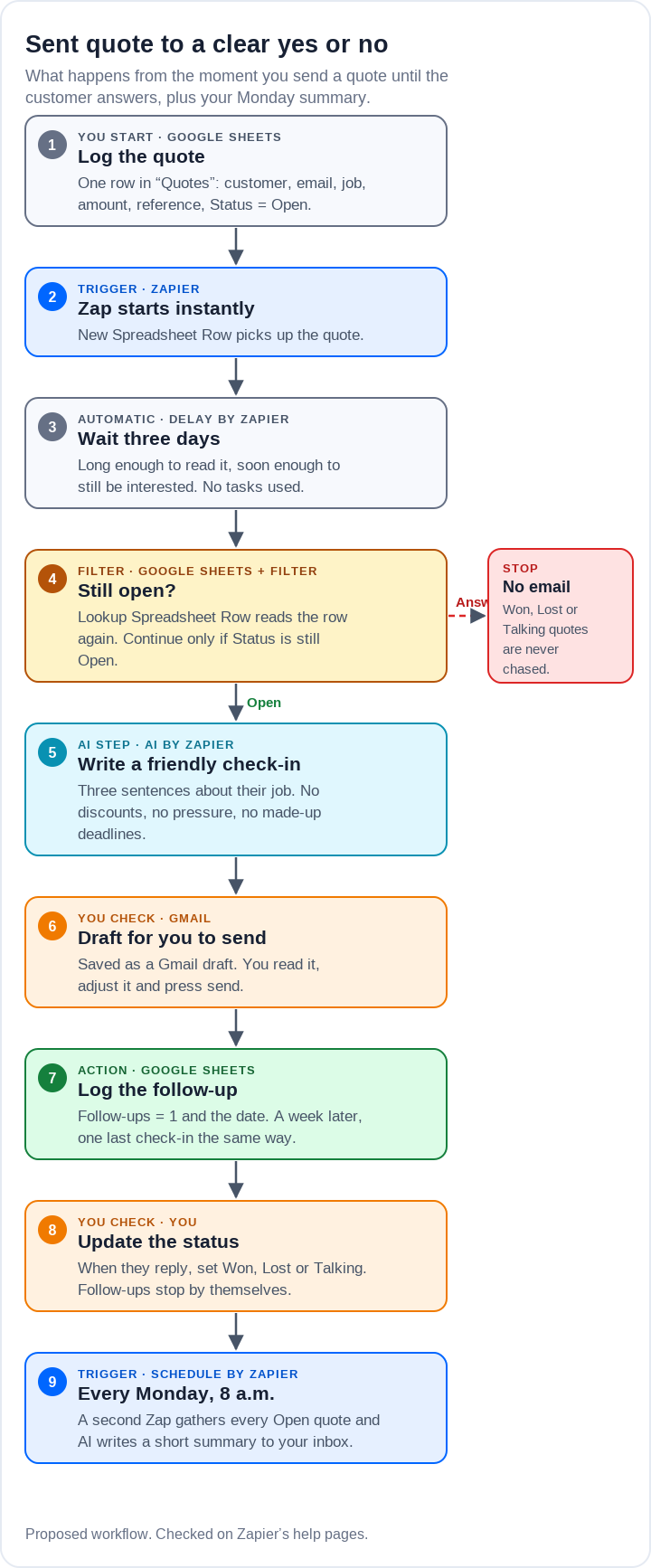
Here is what moves between the apps.
| Step | App | Takes in | Produces |
|---|---|---|---|
| Log the quote | Google Sheets | What you type | Row with Quote ref and Status = Open |
| Trigger and filter | Zapier | New Spreadsheet Row | The row, if it has an email and is Open |
| Wait | Delay by Zapier | 3 days, later 7 days | The Zap continues |
| Still open? | Google Sheets + Filter | Quote ref | The row as it is now; stop unless Open |
| Check-in | AI by Zapier | Customer, job, amount | Two or three sentences |
| Draft | Gmail | Email, check-in | Draft for you to send |
| Log | Google Sheets | Row number | Follow-ups and Last follow-up |
| Monday summary | Schedule, Sheets, AI, Gmail | All Open rows | One email to you |
Before you start
- A Google account with Google Sheets and the Gmail mailbox you send quotes from.
- A Zapier account on a paid plan. Delay by Zapier is not on the free plan, and the Zaps have more than two steps. New accounts get a 14-day Professional trial for building and testing.
- A habit of giving every quote a unique reference, such as Q-1042.
- Your time zone set correctly in your Zapier account, because the Monday summary uses it.
- Three or four test quotes using your own email address.
Step-by-step setup
10 steps, about 1.5–2 hours in total. Each step shows where to go, what to click, the exact settings and how to check it worked. The pictures are simplified illustrations of the settings, not screenshots, and button names can change slightly as apps update.
-
Google Sheets · New spreadsheet
Build the “Quotes” sheet
10 min

Do this
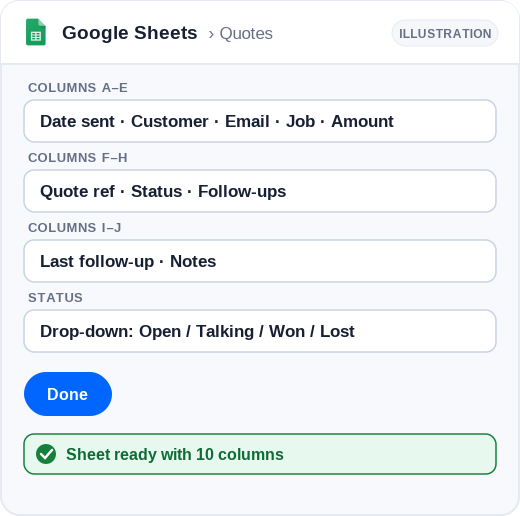
- Create a spreadsheet called Quotes.
- Type the ten headers below into row 1, in this order.
- Give Status a drop-down: Open, Talking, Won, Lost.
- Add every new quote as a new row at the bottom, with no blank rows.
Setting Set it to Columns A–E Date sent, Customer, Email, Job, Amount Columns F–J Quote ref, Status, Follow-ups, Last follow-up, Notes Status Drop-down: Open (default), Talking, Won, Lost Quote ref Unique, e.g. Q-1042 Check: Each quote has a unique reference. The workflow uses it to find the right row later.
Tip: Already send quotes from an app that connects to Zapier? You can swap the sheet trigger for that app’s “quote sent” trigger later. Keep the sheet as the status list.
-
Zapier · New Zap
Start the follow-up Zap
6 min
Do this
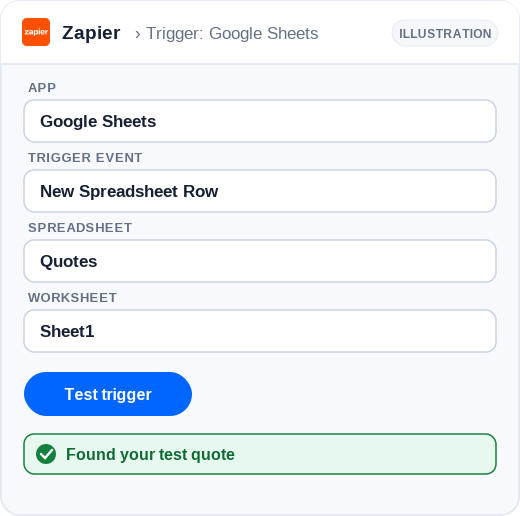
- In Zapier, click Create, then Zap, and name it Quote follow-ups.
- Choose Google Sheets and New Spreadsheet Row.
- Pick the Quotes spreadsheet and worksheet.
- Add a test quote with your own email and click Test trigger.
Check: The test shows every column, including Quote ref and the row number.
-
Zapier · Filter + Delay
Skip bad rows, then wait three days
4 min

Do this
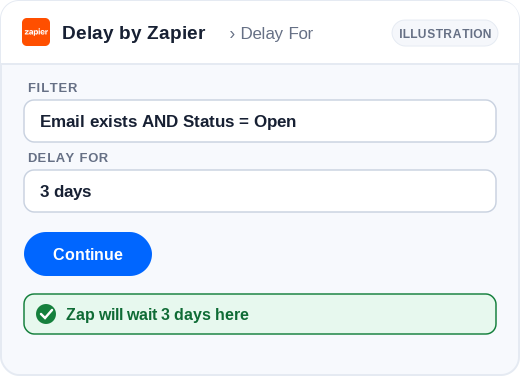
- Add a Filter: continue only if Email exists and Status exactly matches Open.
- Add Delay by Zapier › Delay For, set to 3 days.
Setting Set it to Filter 1 Email · Exists Filter 2 Status · (Text) Exactly matches · Open Delay For 3 days Check: Filter and Delay steps use no tasks. While testing, set the delay to a few minutes.
Tip: Business-to-business quotes often need longer. Try 4–5 days if your customers get approval from someone else.
-
Zapier · Google Sheets + Filter
Check the quote is still open
6 min
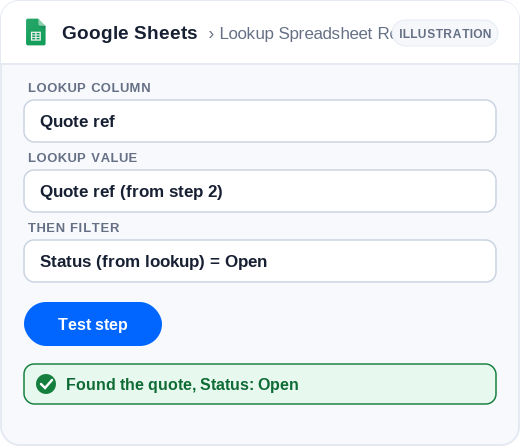
This is what stops the workflow chasing someone who already said yes. It reads the row as it is now, not as it was three days ago.

Do this
- Add Google Sheets › Lookup Spreadsheet Row.
- Look up the Quote ref column with the Quote ref from the trigger.
- Add a Filter on the looked-up Status: continue only if it exactly matches Open.
Setting Set it to Lookup column Quote ref Lookup value Quote ref (from the trigger) Filter Status (from the lookup) · Exactly matches · Open Check: Change your test quote to Won and test again: the filter should stop it.
-
Zapier · AI by Zapier
Write a friendly check-in with AI
8 min
Do this
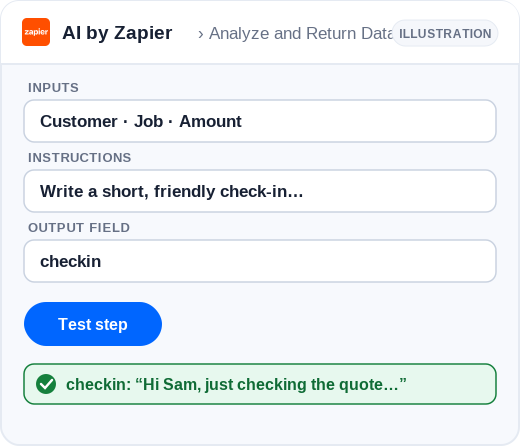
- Add AI by Zapier › Analyze and Return Data.
- Map in Customer, Job and Amount.
- Paste the instruction below and ask for one output field called checkin.
- Test it several times and read each version as the customer would.
Setting Set it to Inputs Customer, Job, Amount Output field checkin (text) Model tier The lowest that writes well; it affects task use Write a short, friendly check-in email body (no more than three sentences) to [first name] about the quote we sent for [job]. Ask whether they had a chance to look at it and offer to answer any questions or adjust the scope. Sound like a real person from a small business. Do not offer discounts, do not invent deadlines or limited availability, do not pressure, and do not repeat the price. Return only the email body.
Check: No discounts, no fake urgency, no price, and it sounds like you.
-
Zapier · Gmail
Save the check-in as a Gmail draft
5 min
Start with drafts. You see every follow-up before it goes, and you can add a personal line when you know the customer.
Do this
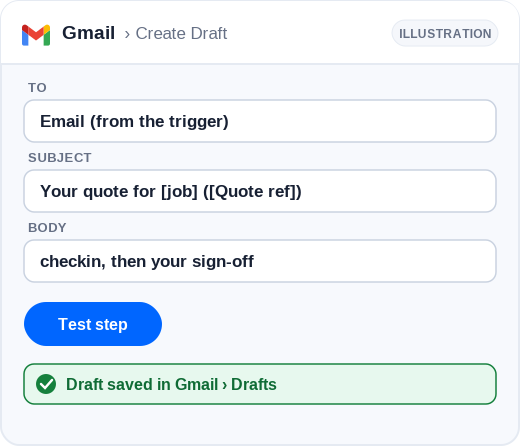
- Add Gmail › Create Draft.
- Set To, Subject and Body as below.
- Click Test step and open Gmail’s Drafts folder.
Check: The draft is addressed correctly and reads naturally.
Tip: After a month of drafts you never change, you can switch this step to Send Email.
-
Zapier · Google Sheets
Log the follow-up
4 min
Do this
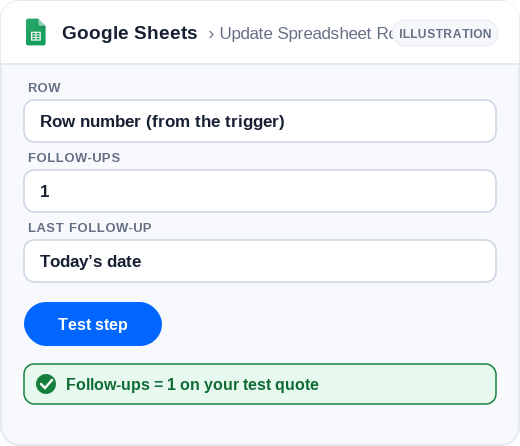
- Add Google Sheets › Update Spreadsheet Row.
- Set Row to the row number from the trigger.
- Set Follow-ups to 1 and Last follow-up to today.
Check: Only your test row changed.
-
Zapier · second round
Add one last check-in a week later
10 min
Do this
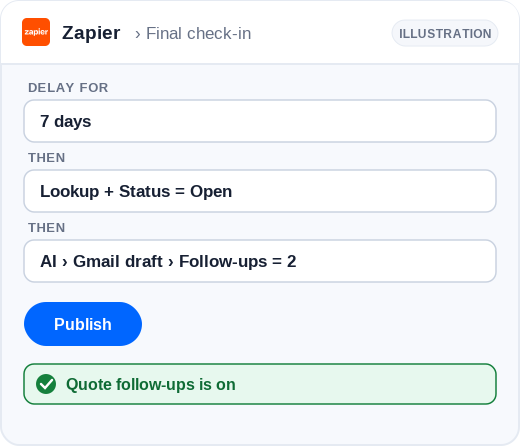
- Add Delay For 7 days.
- Repeat step 4 (lookup and Status = Open filter).
- Add another AI step with the instruction below, then Create Draft.
- Update the row: Follow-ups = 2, Last follow-up = today.
- Click Publish. There are never more than two follow-ups.
Setting Set it to Delay 7 days Check Same lookup and filter as step 4 Draft Final, polite check-in Sheet Follow-ups = 2 Write a short, polite final check-in (two sentences) to [first name] about the quote for [job]. Say we don’t want to fill their inbox, ask whether they would like us to keep the quote open or close it for now, and thank them. No discounts, no pressure.
Check: A quote marked Won or Lost before day 10 gets no second email.
-
Zapier · New Zap (weekly)
Get a Monday summary of open quotes
15 min
Do this
- Create a second Zap named Open quotes: Monday summary.
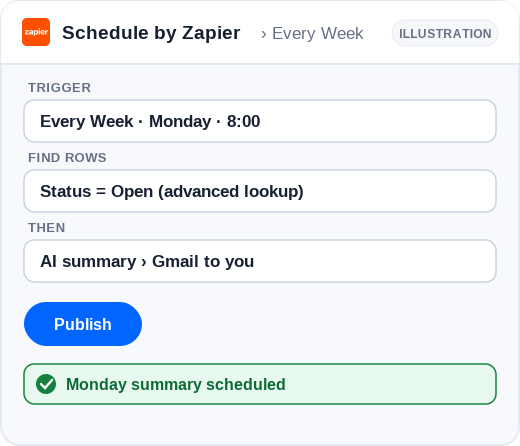
- Choose Schedule by Zapier › Every Week, Monday, 8 a.m.
- Add Google Sheets › Lookup Spreadsheet Rows (Advanced) with Status = Open.
- Add AI by Zapier to summarise them: total value, oldest first, and who to call this week.
- Add Gmail › Send Email to yourself, then Publish.
Setting Set it to Trigger Schedule by Zapier · Every Week Day / time Monday, 08:00 (your Zapier account time zone) Find rows Lookup Spreadsheet Rows (Advanced) · Status = Open Email to Yourself Here are this week’s open quotes as rows of date sent, customer, job, amount and follow-ups: [rows]. Write a short summary for the owner: the number of open quotes and their total value, the three oldest, and a plain list of who to call this week. Use only the data given.
Check: Schedule steps use no tasks, and run within a few minutes of the time you set, in your Zapier account’s time zone.
-
Your routine · every day
Update the status when customers reply
1 min per reply
Do this
- When a customer answers (email, phone, in person), open the sheet.
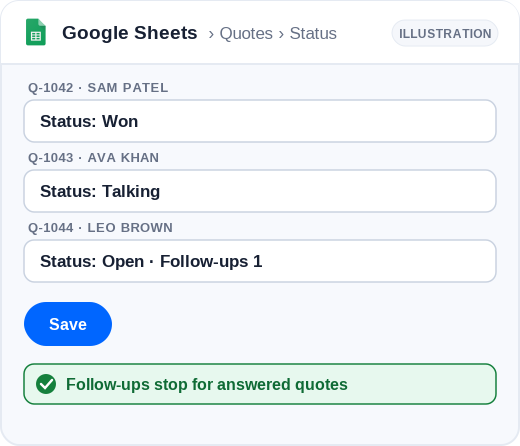
- Set Status to Talking, Won or Lost.
- Follow-ups for that quote stop automatically at the next check.
Setting Set it to Replied, still deciding Talking Accepted Won Declined or went quiet after 2 follow-ups Lost Check: Your Monday summary only lists quotes that are genuinely still waiting.
Using it day to day
- When you send a quote (30 seconds): add the row with Status = Open.
- Each morning: open Gmail Drafts, read any check-ins, add a personal line if you know the customer, and send.
- When a customer replies: set Status to Talking, Won or Lost straight away. That is what stops the follow-ups.
- Every Monday: read the summary and make the calls it suggests. Close quotes that will not happen by setting them to Lost.
- Every month: count Won against all quotes to see your win rate, and check your Zapier task usage.
Small-business examples
These are illustrations of how different businesses could set it up, not customer case studies.
A kitchen fitter
Quotes go out after a home visit, often to couples who need time to decide. The first check-in waits five days instead of three and offers to answer questions about materials. The Monday summary goes to both business partners so each knows which customers to call.
A small marketing agency
Proposals go to managers who need sign-off from a director. The check-in offers a short call to walk the director through the proposal. Talking is used heavily, so the Monday summary is a useful list of live opportunities.
A catering company
Event dates are fixed, so the final check-in mentions the event date from the Job column and asks whether they would like the quote kept open. Lost quotes are reviewed each month to spot prices or menus that often lose.
Test it before you rely on it
- Add a test quote with your own email. Set the delays to a few minutes while testing.
- Check a draft appears in Gmail, reads well and has the right subject and reference.
- Check Follow-ups and Last follow-up are filled in on the right row.
- Add a second test quote and set it to Won before the first delay ends. Confirm no draft is created.
- Leave a third test quote Open and confirm the second, final draft appears and Follow-ups becomes 2.
- Test each step of the Monday Zap in the editor and check the summary lists only Open quotes.
- Set the delays back to 3 and 7 days before switching on for real.
Cautions
- Keep the status up to date. The workflow can only stop chasing if the sheet says the quote was answered.
- Never more than two follow-ups. More can feel like pressure and harm your reputation.
- No discounts or fake urgency from AI. Keep those rules in the instruction, and read drafts before sending.
- Respect the rules where your customers are on business emails, honour any request to stop, and do not add quote customers to marketing lists without consent.
- Keep the Zap switched on. Delayed runs only continue while the Zap is on, and Zapier holds them for up to 30 days.
- Quotes are personal data. Share the sheet only with people who handle quotes.
Troubleshooting
- Nothing happens when I add a quote. Add rows at the bottom of the sheet with no blank rows, and check the Zap is on.
- A customer who said yes still got a follow-up. The status was changed after the check ran, or the lookup found the wrong row. Make Quote ref unique and look it up by Quote ref.
- The wrong row is updated. Map the row number from the trigger into Update Spreadsheet Row.
- The Monday email arrives at the wrong time. Schedule by Zapier uses your Zapier account’s time zone, not the Zap’s.
- The summary misses quotes. Check the Status values are spelled exactly “Open”, and that you have fewer than 500 open quotes (the most the advanced lookup returns).
Frequently asked questions
Can it send the follow-ups automatically?
Yes. Swap Create Draft for Send Email once you trust the drafts. We suggest a month of drafts first.
Can I use my quoting or invoicing app instead of a sheet?
Yes, if it connects to Zapier. Use its “quote sent” trigger and keep the sheet, or the app’s own status, as the thing the workflow checks before each follow-up.
Will this feel spammy to customers?
Two short, personal emails over ten days, which stop when they answer, is normal business follow-up. Pushy wording, discounts and endless reminders are what feel spammy, and the workflow avoids all three.
Does it work with a CRM?
Yes. If you use HubSpot or another CRM, you can keep quotes there instead. This version uses a sheet because most small businesses already have one.
What we verified
These are the software features this workflow depends on, each checked on the vendor’s own help or pricing page. Everything else on this page, including how the steps fit together, is our proposal.
-
Google Sheets on Zapier has a New Spreadsheet Row trigger, Lookup Spreadsheet Row, Update Spreadsheet Row, and Lookup Spreadsheet Rows (Advanced), which finds up to 500 rows as line items.
Zapier help: Google Sheets (opens in a new tab) · checked Nov 24, 2026 -
Delay by Zapier’s Delay For pauses a Zap, holds runs for up to 30 days, does not use tasks, and is not on the free plan.
Zapier help: Delay (opens in a new tab) · checked Nov 24, 2026 -
Schedule by Zapier can run a Zap every week on a chosen day and time, uses your Zapier account’s time zone, and does not use tasks.
Zapier help: Schedule (opens in a new tab) · checked Nov 24, 2026 -
Gmail on Zapier has “Create Draft” and “Send Email” actions.
Zapier: Gmail integrations (opens in a new tab) · checked Nov 24, 2026 -
Triggers, Filter and Delay steps do not use tasks; AI by Zapier’s task use depends on the model tier.
Zapier help: task usage (opens in a new tab) · checked Nov 24, 2026
Workflow last updated . How we review