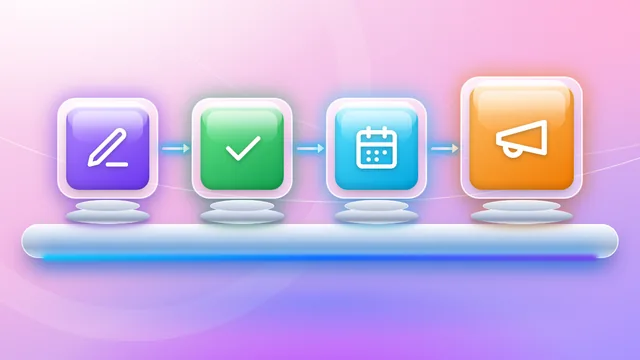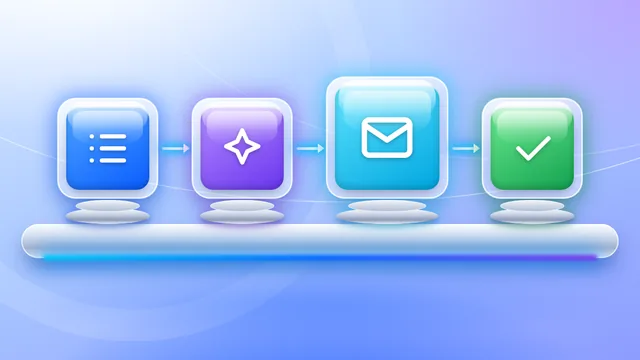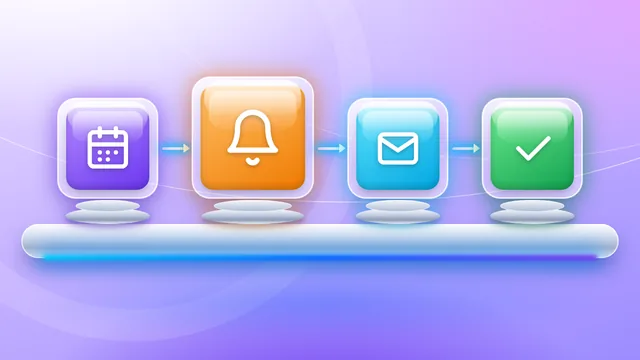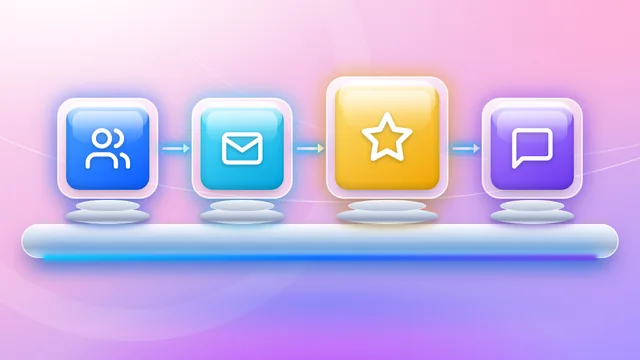
Proposed workflow. Each software feature it relies on was checked against the vendor’s own documentation on November 24, 2026. We have not run this exact setup end to end, so test it with sample data before you rely on it.
How it works
- 1. TriggerJob marked doneNew row in your sheet
- 2. FilterOK to email?Skip opt-outs only
- 3. AI stepWait, then thank them1 day; AI writes two sentences
- 4. ActionSend review requestYour Google review link
- 5. ActionOne reminder if neededAfter 4 days, if not reviewed
- 6. You checkReply to every reviewIn your Business Profile
Software you need
-
Google Sheets (official site, opens in a new tab) Required
Your list of completed jobs; adding a row starts the workflow and records requests and reviews.
-
Zapier (with Delay, Filter and AI by Zapier) Required
Waits a day, writes the thank-you, sends the request and one reminder, and updates the sheet.
-
Gmail (official site, opens in a new tab) Required
Sends the requests from your own address, so replies reach you.
-
Google Business Profile (official site, opens in a new tab) Required
Gives you the review link and QR code, and is where you reply to reviews.
Estimated cost
Your Google tools are free. The only paid piece is Zapier Professional, because Delay steps are not on the free plan. Triggers, filters and delays use no tasks.
Estimate this workflow’s monthly cost
| Software | Free plan | Paid plans from | What this workflow needs |
|---|---|---|---|
| Google Business Profile | Free | Pricing page for Google Business Profile (opens in a new tab) | A verified profile |
| Google Sheets and Gmail | Included with a Google account | What you already use | |
| Zapier | 100 tasks a month and two-step Zaps, but no Delay steps; 14-day Professional trial for new accounts | Professional from $19.99 a month (the page offers monthly or yearly billing and does not say which this price is) Pricing page for Zapier (opens in a new tab) | Professional, for Delay and multi-step Zaps. Per customer: two Gmail and two Sheets tasks at most, plus the AI step |
Prices and plan limits from each vendor’s official pricing page, checked Nov 24, 2026. Vendors change prices; check the page before you buy.
What this automation does
Every time you finish a job, you add one line to a Google Sheet. The next day, the customer gets a short, personal thank-you email from your own address with a one-click link to review you on Google. If they have not reviewed you four days later, they get one polite reminder, and then the workflow stops. You do the part that matters most: replying to each review yourself.
Happy customers rarely think to leave a review on their own. They usually will if you ask at the right moment and make it a single click. This workflow asks every customer, every time, without you having to remember, and it follows Google’s rules on asking for reviews.
It is built with Google Sheets, Zapier (with its Delay, Filter and AI steps), Gmail and your free Google Business Profile. Nothing needs code.
Who benefits
- Local service businesses, such as trades, cleaners, salons, garages, clinics, tutors and photographers, whose new customers search Google Maps and compare star ratings before they call.
- Owners who know they should ask for reviews but forget at the end of a busy day.
- Professional firms, such as accountants, solicitors, consultants and agencies, where a few detailed reviews build trust with the next client.
- Staff, who no longer have to ask customers in person, which many find awkward.
- Future customers, who get more recent, genuine reviews to decide from.
Advantages
- Every customer is asked. Nobody is forgotten, which is also what Google’s policy expects: you must not pick only the customers you think are happy.
- Perfect timing. The request arrives the day after the job, while the experience is fresh.
- One click to review. Google gives you a direct review link from your Business Profile, and it goes in every email.
- Personal, not spammy. AI writes two sentences about their actual job, and the email comes from your own address, so replies reach you.
- Polite by design. There is exactly one reminder, and only if no review was recorded.
- Cheap to run. Triggers, filters and delays use no Zapier tasks. Each customer uses a few tasks: the emails, the sheet update and the AI step.
- A record you can learn from. The sheet shows how many customers you asked and how many reviewed, month by month.
What it does not do: it does not post or reply to reviews for you, it cannot see who has reviewed you (you tick that in the sheet), and it does not text customers. It never offers rewards and never filters out unhappy customers. Both are against Google’s rules.
The process flow
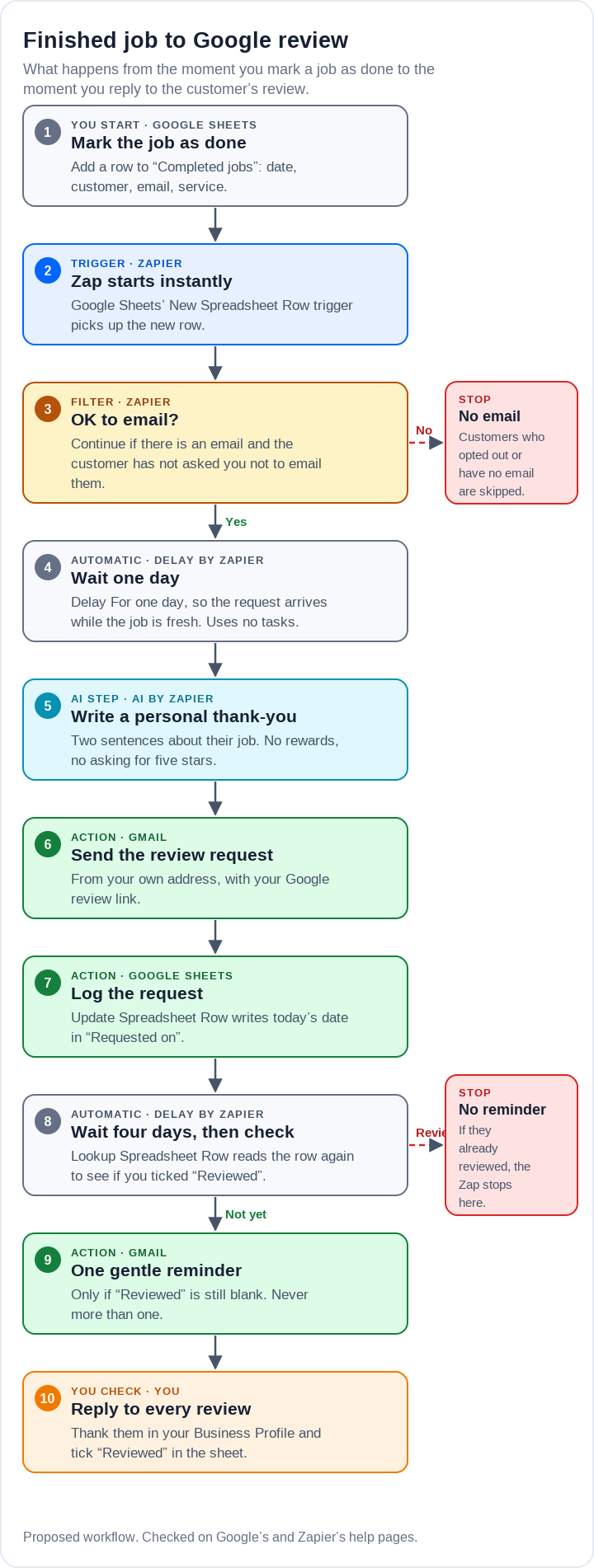
Here is what moves between the apps at each step.
| Step | App | Takes in | Produces |
|---|---|---|---|
| 1. Job done | Google Sheets | What you type | New row: date, customer, email, service, “OK to email” |
| 2. Trigger | Zapier | New Spreadsheet Row | All columns of that row, and its row number |
| 3. Filter | Zapier | Email, OK to email | Continue or stop |
| 4. Wait | Delay by Zapier | Delay For: 1 day | The Zap continues the next day |
| 5. Thank-you | AI by Zapier | First name, service | Two sentences |
| 6. Request | Gmail | Email, thank-you, review link | Review request email |
| 7. Log | Google Sheets | Row number, today’s date | “Requested on” filled in |
| 8. Wait and check | Delay by Zapier, Google Sheets | Delay For: 4 days, then Lookup Spreadsheet Row | The row as it is now, including “Reviewed” |
| 9. Reminder | Zapier Filter, Gmail | “Reviewed” blank? | One reminder email, and “Reminder sent” filled in |
| 10. Reply | You, Google Business Profile | The new review | Your public reply, and “Reviewed” ticked |
Before you start
- A verified Google Business Profile. Google requires verification before you can reply to reviews.
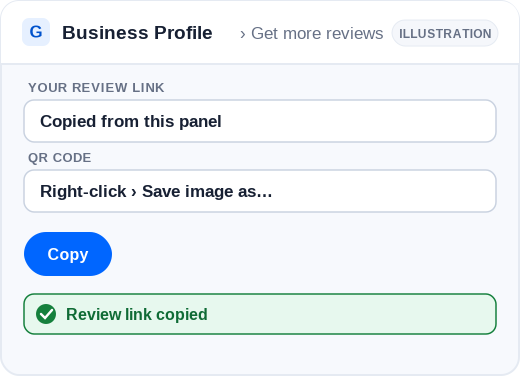
- Your review link. In your Business Profile, select Read reviews, then Get more reviews, and copy the link. Google notes that the review QR code can only be created in a computer browser, so do this on a computer.
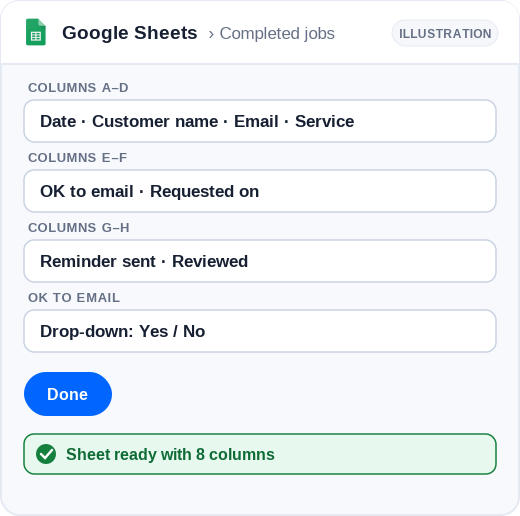
- A Google Sheet called “Completed jobs”, with these headers in row 1: Date, Customer name, Email, Service, OK to email, Requested on, Reminder sent, Reviewed.
- A Zapier account on a paid plan. Delay by Zapier is not available on the free plan, and the workflow has more than two steps. New accounts get a 14-day Professional trial for building and testing.
- The Gmail mailbox you want requests to come from.
- Ten minutes to write your email in your own voice. A template is in step 7.
Step-by-step setup
11 steps, about 1.5–2 hours in total. Each step shows where to go, what to click, the exact settings and how to check it worked. The pictures are simplified illustrations of the settings, not screenshots, and button names can change slightly as apps update.
-
Google Business Profile · on a computer
Get your Google review link
5 min
Google notes that the review QR code can only be created in a computer browser, so do this step on a computer.

Do this
- Go to your Business Profile and select Read reviews.
- Select Get more reviews.
- Select Copy to copy the review link, and paste it somewhere safe.
- Right-click the QR code and choose Save image as… for your counter, invoices or van.
- Open the link in a private browser window to check it goes straight to your review box.
Setting Set it to Where Business Profile › Read reviews › Get more reviews Copy The review link Save The QR code image Check: In a private window, the link opens your business with the review box ready.
-
Google Sheets · New spreadsheet
Build the “Completed jobs” sheet
10 min

Do this
- Create a spreadsheet called Completed jobs.
- Type the eight headers below into row 1, in this order.
- Select the OK to email column and add a drop-down with Yes and No.
- Add each finished job as a new row at the bottom, with no blank rows in between.
Setting Set it to Columns A–D Date, Customer name, Email, Service Columns E–H OK to email, Requested on, Reminder sent, Reviewed OK to email Drop-down: Yes (default) or No New jobs Always at the bottom, no blank rows Check: Row 1 has the eight headers and the drop-down works.
Tip: Only choose No when the customer asked not to get emails, or the job did not go ahead. Never because you think they were unhappy: Google forbids selectively asking happy customers.
-
Zapier · New Zap
Start the Zap
6 min
Do this
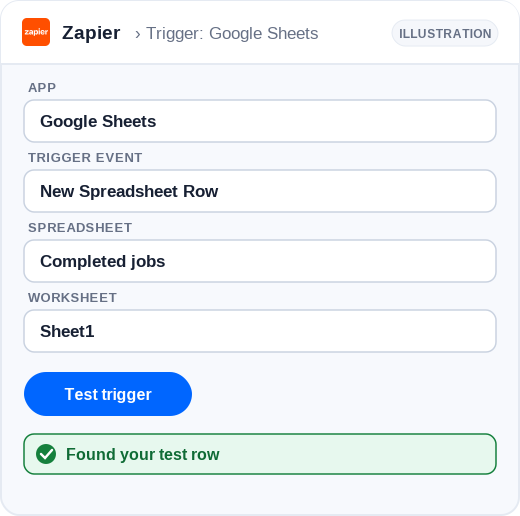
- In Zapier, click Create, then Zap, and name it Review request after job.
- Choose Google Sheets and the trigger event New Spreadsheet Row.
- Pick your spreadsheet and worksheet.
- Add a test row with your own email, then click Test trigger.
Check: The test shows every column of your test row, including the row number.
-
Zapier · Filter
Skip customers you must not email
3 min
Do this
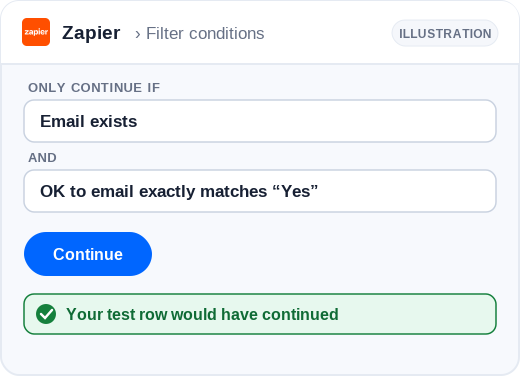
- Click + and choose Filter.
- Add the two conditions below, joined with AND.
Setting Set it to Condition 1 Email · Exists Condition 2 OK to email · (Text) Exactly matches · Yes Check: Your test row passes. Filtered runs use no tasks.
-
Zapier · Delay by Zapier
Wait until the next day
2 min
Do this
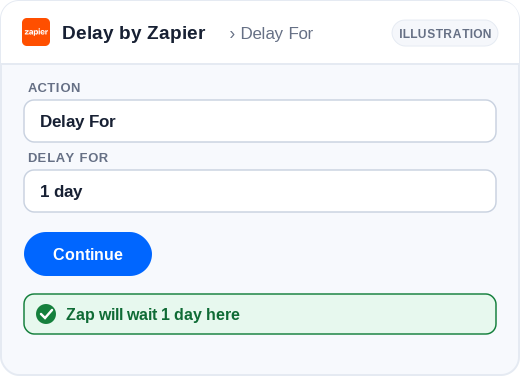
- Click +, choose Delay by Zapier and Delay For.
- Set it to 1 day.
- Want a set send time instead, like 10 a.m. next day? Use Delay Until.
Check: The step shows a one-day delay. Delay steps use no tasks, and the Zap must stay on for delayed runs to continue.
Tip: While testing, set it to a few minutes. Remember to change it back.
-
Zapier · AI by Zapier
Write a short, personal thank-you with AI
8 min

Do this
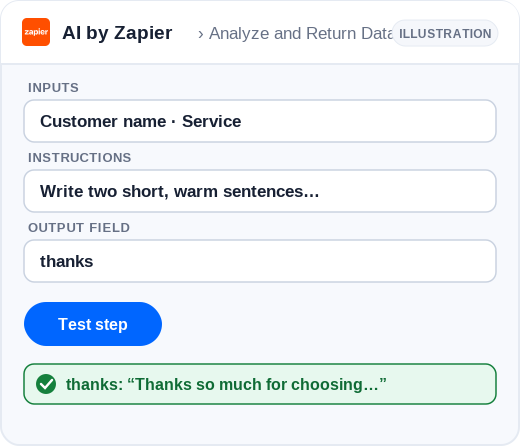
- Click +, choose AI by Zapier and Analyze and Return Data.
- Map in the customer’s first name and the Service column.
- Paste the instruction below and ask for one output field called thanks.
- Test it a few times and read each version.
Setting Set it to Inputs Customer name, Service Output field thanks (text) Model tier The lowest that writes well; it affects task use Write two short, warm sentences thanking [first name] for choosing [business name] for their [service]. Sound like a real person, not a company. Do not ask for a positive or five-star review, do not mention rewards or discounts, and do not mention any staff member by name. Return only the two sentences.
Check: No mention of stars, rewards or staff names.
Tip: Prefer no AI? Write one thank-you sentence yourself and use it for everyone.
-
Zapier · Gmail
Send the request from Gmail
6 min
Do this
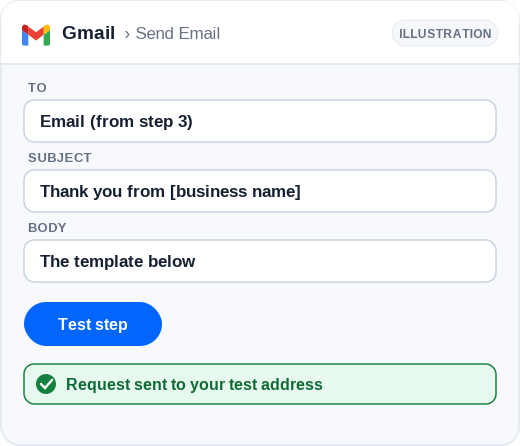
- Click +, choose Gmail and Send Email.
- Connect the mailbox you want requests to come from.
- Fill in To, Subject and Body as below, with your review link from step 1.
- Click Test step and open the email in your inbox.
Hi [first name],
[thanks]
If you have a minute, we’d really appreciate an honest review on Google. It helps other people find us and helps us keep improving:
[your review link]
And if anything wasn’t right, just reply to this email and I’ll sort it out.
Thanks again,
[your name], [business name]Check: The email reads naturally and the review link opens your review box.
-
Zapier · Google Sheets
Log the request in the sheet
4 min
Do this
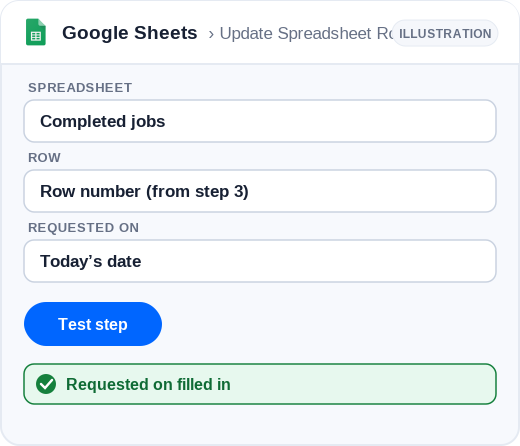
- Click +, choose Google Sheets and Update Spreadsheet Row.
- Choose the same spreadsheet and worksheet.
- Set Row to the row number from the trigger. Do not type a number.
- Set Requested on to today’s date.
Check: “Requested on” is filled in on your test row and nowhere else.
-
Zapier · Delay + Google Sheets
Wait four days, then check the sheet again
6 min
Do this
- Add Delay by Zapier with Delay For set to 4 days.
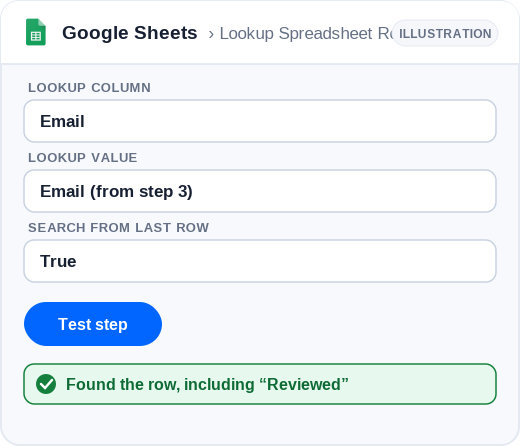
- Add Google Sheets with Lookup Spreadsheet Row.
- Look up the Email column using the customer’s email.
- Set Search from last row to True, so the newest job is found.
Setting Set it to Delay Delay For · 4 days Lookup column Email Lookup value Email (from step 3) Search from last row True Check: The lookup returns your test row as it is now, including the Reviewed column.
-
Zapier · Filter + Gmail + Sheets
Send one gentle reminder
8 min
Do this
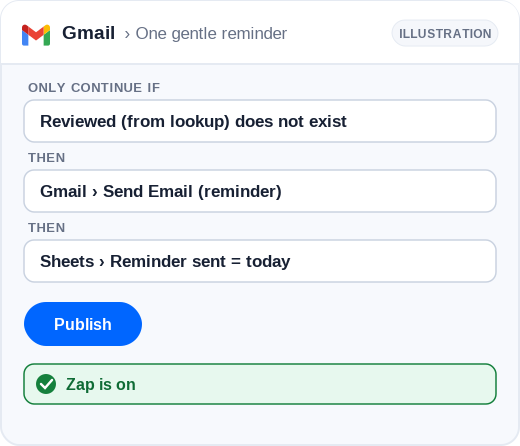
- Add a Filter: continue only if the looked-up Reviewed value does not exist.
- Add Gmail › Send Email with the shorter note below.
- Add Update Spreadsheet Row that writes the date in Reminder sent.
- Click Publish to switch the Zap on.
Setting Set it to Filter Reviewed (from the lookup) · Does not exist Gmail Send Email · same To and subject “Quick reminder” Sheets Update Spreadsheet Row · Reminder sent = today Hi [first name], just a quick nudge in case my last email got buried. If you have a moment, an honest Google review would mean a lot to a small business like ours: [your review link]. Either way, thank you, and I won’t send another reminder.
[your name]Check: Map the Reviewed value from the lookup step, not the original one from the trigger.
-
Google Business Profile · every few days
Reply to every review
10 min, twice a week
Do this
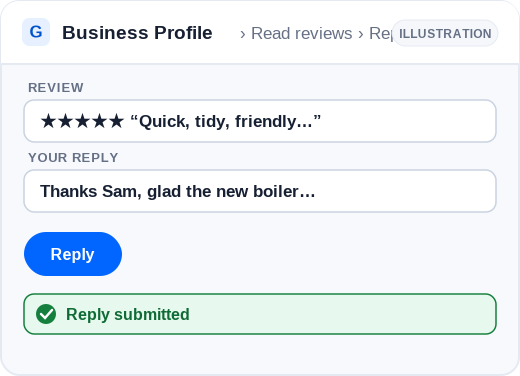
- Open your Business Profile and select Read reviews.
- Next to each new review, select Reply, write a short, specific reply and select Reply again.
- Tick Reviewed against that customer in the sheet, so they get no reminder.
Setting Set it to Where Business Profile › Read reviews Reply Short and specific, not the same every time Then Tick Reviewed in the sheet Check: Google checks replies against its policies first. That usually takes up to 10 minutes but can take longer, and your reply shows as the business, not your name.
Using it day to day
- At the end of each job (30 seconds): add the row. If you already record jobs in a booking, invoicing or job app that connects to Zapier, you can later swap the Sheets trigger for that app’s “job completed” or “invoice paid” trigger.
- Every few days (10 minutes): open Read reviews, reply to each new review and tick “Reviewed” in the sheet. Google suggests replying with something useful rather than the same thank-you every time.
- When someone replies to your email with a problem: deal with it personally and quickly. Do not ask them to avoid posting a review.
- Every month: count the rows with “Requested on” and the rows ticked “Reviewed” to see your review rate. Check Zapier’s Zap history for errors and your task usage.
- Every few months: refresh the email wording so it still sounds like you.
Small-business examples
These are illustrations of how different businesses could set it up, not customer case studies.
A family-run garage
The front desk adds a row when each car is collected, with the service done (“annual service”, “new brakes”). The AI line mentions the service, and the email goes out the next morning. The owner replies to reviews on Friday afternoons and has the review QR code printed on the counter for walk-in customers.
A dog-grooming salon
Owners book regularly, so the salon adds the “Reviewed” tick and also a note column for customers who have already been asked in the last three months. The filter skips those customers so regulars are not emailed after every visit; the same rule applies to everyone. Every new customer is still asked after their first visit, whatever their experience.
A bookkeeping freelancer
There are only two or three new clients a month, so the request goes after the first set of accounts is delivered rather than after every job. The freelancer writes the thank-you sentence by hand in the sheet instead of using AI, and replies to each review with a short, specific note.
Test it before you rely on it
- Add a row with your own email and OK to email set to Yes. While testing, change the delays to a few minutes.
- Check the request arrives, reads well, and the review link opens your review box.
- Check “Requested on” is filled in on the right row.
- Leave “Reviewed” blank and confirm one reminder arrives and “Reminder sent” is filled in.
- Add a second test row, tick “Reviewed” before the second delay ends, and confirm no reminder is sent.
- Add a row with OK to email set to No, and one with no email, and confirm nothing is sent.
- Set the delays back to 1 day and 4 days before switching the Zap on for real.
Cautions
- Never offer anything in return for a review, such as discounts, free services, prize draws or gift cards. Google calls this fake engagement and strictly prohibits it.
- Ask everyone, not just happy customers. Google’s policy forbids discouraging negative reviews or selectively asking for positive ones. Do not use the “OK to email” column, or any survey, to screen out unhappy customers.
- Do not ask customers to name staff, and do not give staff review targets. Google’s policy lists both as prohibited.
- Staff, friends and family should not review the business. Google treats reviews based on a conflict of interest as against its policy.
- Do not pressure people on the premises. Google says businesses should not require or pressure customers to review while they are there. A QR code on the counter is fine; standing over someone is not.
- Respect email consent. A review request to a recent customer is usually seen as part of the service, but follow the rules where your customers are, honour opt-outs straight away, and never add these customers to marketing lists without consent.
- Keep the Zap switched on. Delayed runs only continue while the Zap is on, and Zapier holds them for up to 30 days.
Troubleshooting
- Nothing happens when I add a row. Add rows at the bottom of the sheet with no blank rows in between, and check the Zap is switched on and pointed at the right worksheet.
- The wrong row gets updated. Map the row number from the trigger into Update Spreadsheet Row. Do not type a row number.
- Reminders go to people who already reviewed. Tick “Reviewed” within four days, and check the Lookup step searches the Email column and the Filter checks the looked-up “Reviewed” value, not the original one from the trigger.
- The review link opens the wrong place. Copy it again from Read reviews and then Get more reviews in your Business Profile, and test it in a private window.
- Customers say they can’t post. Google says customers must be signed in to a Google Account to leave a review.
- The AI line sounds generic. Add a more specific Service column, such as “boiler service at the new flat”, and ask for a warmer tone.
Frequently asked questions
Can I send only to customers who liked the service?
No. That is “review gating”, and Google’s policy forbids selectively asking for positive reviews. Ask everyone, and fix problems when people tell you about them.
Can I offer a discount for leaving a review?
No. Google strictly prohibits incentives for reviews, including discounts and free goods or services.
Can I use my booking or invoicing app instead of a sheet?
Yes, if it connects to Zapier. Use its “job completed” or “invoice paid” trigger in place of New Spreadsheet Row, and keep a sheet for the reminder check, or drop the reminder.
Can I send it by text message or WhatsApp?
Google mentions email, WhatsApp and Facebook as ways to send review requests. We checked only Gmail for this workflow, so compare messaging providers’ pricing and opt-out rules first.
Will this get me five-star reviews?
It gets you more honest reviews from real customers. The stars come from the work itself, and your replies show future customers how you treat people.
What we verified
These are the software features this workflow depends on, each checked on the vendor’s own help or pricing page. Everything else on this page, including how the steps fit together, is our proposal.
-
Google lets you create a link or QR code to request reviews from your Business Profile (Read reviews, then Get more reviews), and suggests using it in thank-you emails.
Google Business Profile Help: request reviews (opens in a new tab) · checked Nov 24, 2026 -
Google’s policy forbids offering incentives for reviews, discouraging negative reviews or selectively soliciting positive ones, and asking staff to solicit reviews that name a staff member.
Google: Maps prohibited and restricted content (opens in a new tab) · checked Nov 24, 2026 -
Verified businesses can reply to reviews from Read reviews; replies are checked against Google’s policies and appear as the business.
Google Business Profile Help: manage reviews (opens in a new tab) · checked Nov 24, 2026 -
Google Sheets on Zapier has a New Spreadsheet Row trigger (rows added to the bottom of a sheet), Lookup Spreadsheet Row and Update Spreadsheet Row.
Zapier help: Google Sheets (opens in a new tab) · checked Nov 24, 2026 -
Delay by Zapier offers Delay For, Delay Until and Delay After Queue, holds runs for up to 30 days, does not use tasks, and is not on the free plan.
Zapier help: Delay (opens in a new tab) · checked Nov 24, 2026 -
AI by Zapier’s task use depends on the model tier; triggers, filters and Delay steps use no tasks.
Zapier help: task usage (opens in a new tab) · checked Nov 24, 2026 -
Gmail on Zapier has a “Send Email” action that creates and sends a new email message.
Zapier: Gmail integrations (opens in a new tab) · checked Nov 24, 2026
Workflow last updated . How we review